Darkify Inkscape
Fortunately since v1, Inkscape has finally rolled out support for theming! Although for Linux, I was actually able to change the GUI theme through global GTK theme setting.
Anyway, after starting up Inkscape, go to Edit -> Preferences (Ctrl+Shift+P) -> Interface -> Theme.
Check the Use dark theme option.
Additionally, I also changed icon theme to multicolor along with the Use symbolic icons as the white icon colour makes them more visible and obvious.
However, I am still not very satisfied with it, because the main drawing area is still too blindingly white!
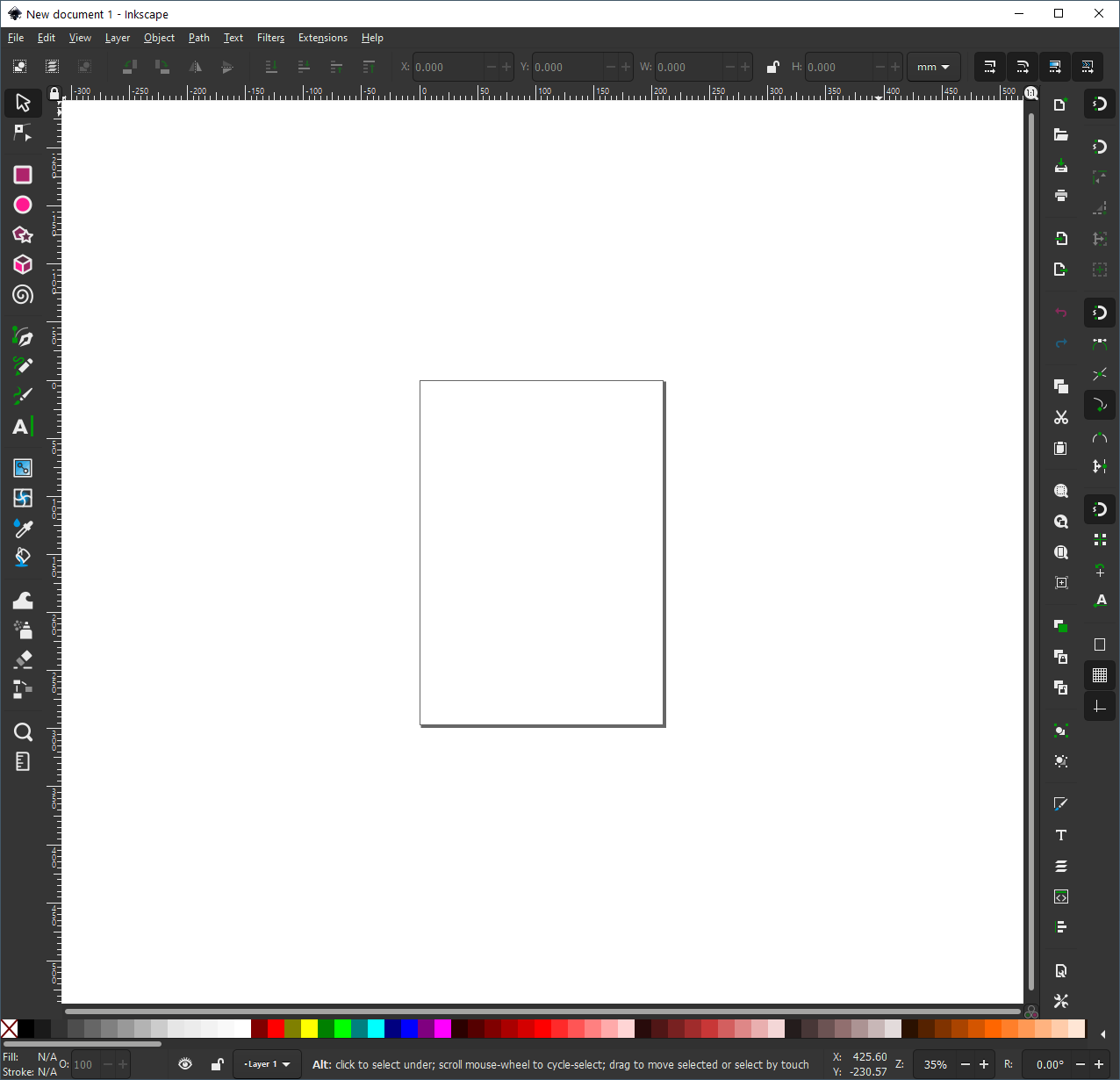
After exploring around, there are 2 options in the Document Properties (Ctrl+Shift+D) that could help:
- set background colour to something less bright, like #808080
- turn on
Chequerboard background
To set this as default template, we will have to modify the file C:\Program Files\Inkscape\share\inkscape\templates\default.svg.
My default.svg can be found here as a reference (I have also changed the default units to px and page size to 512x512).
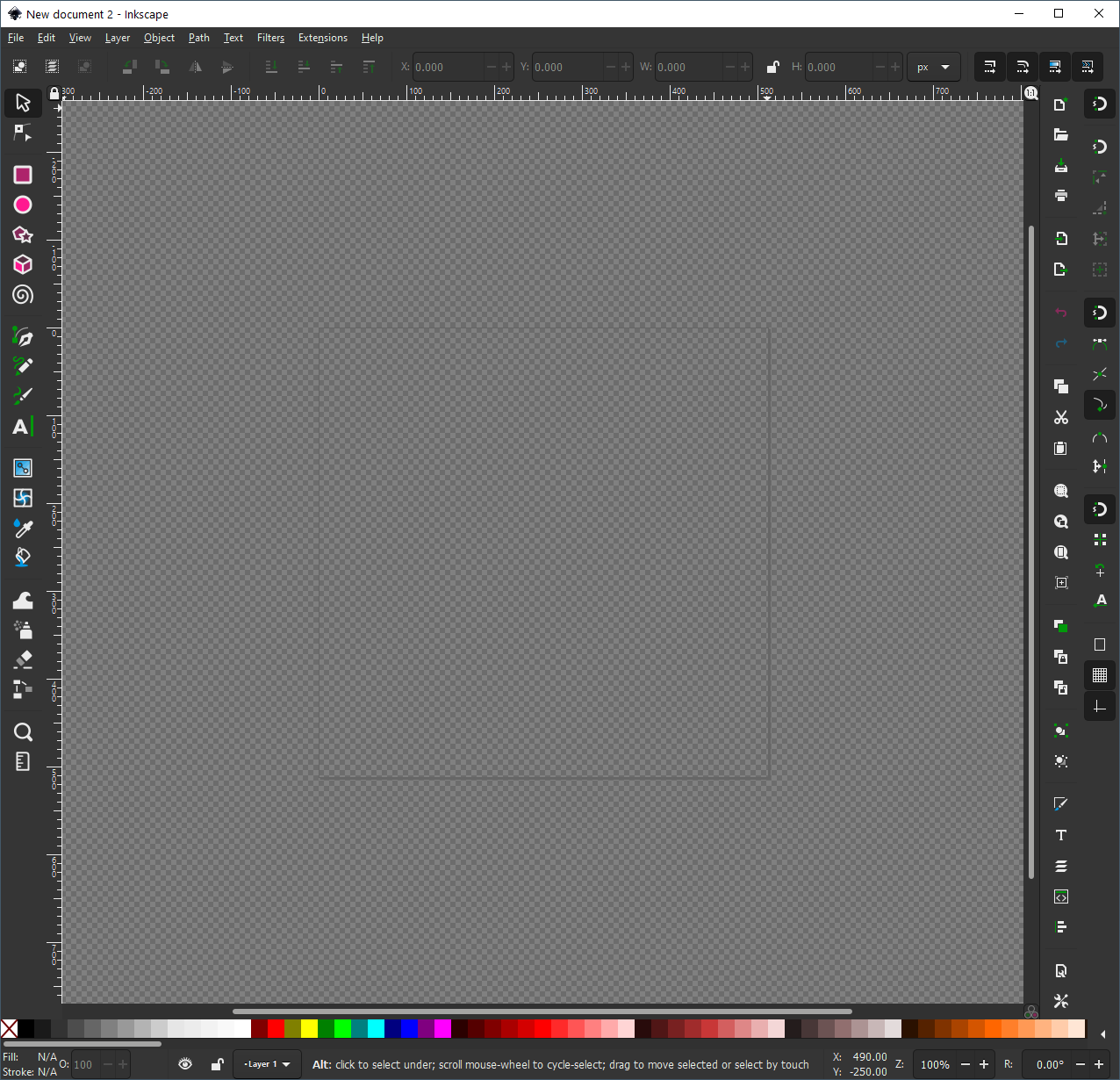
At last, something more soothing to the eye:

PS: Inkscape v1 also made some changes to the command line interface, so remember to update your scripts!